Posts

Azure Update Management

Image
  Step by step procedure to install updates on Azure Windows/Linux servers with Azure Update Management: Azure Update management is an Automation tool /service used to install patches on Azure on-premises Windows/Linux computers. Below are the four steps to be followed to install the missing patches on computers using Azure update management component. Create a Log Analytics workspace. Create an Automation account. Link the Automation account with the Log Analytics workspace. Enable Update Management for Azure VMs. Create a Log Analytics workspace: In the Azure portal, select create a resource> Log Analytics workspaces>create Fill up the details such as Resource group,Name,Region in basics tab> Review and create with default settings Create an Automation account: In the Azure portal, select create a resource>Automation accounts>create Fill up the details such as Resource group,Name,Region in basics tab> Review and create with default settings Link the Automation ...

Azure Dashboard Creation

Image
Creating Dashboard in Azure: Creating a dashboard will help you to identify issues and able to keep track of the services and resources health and performance in Azure Dashboard. Go to Azure portal >Dashboard> Click on new dashboard>Blank Dashboard From the Tile gallery select the service you want to create a Dashboard>Add Select the Metric chart form tile gallery>Configure tile setting >apply Click on Preview>Update pinned part on dashboard>Save Now the dashboard is ready to publish>Click on Share and publish You can create a dashboard for multiple tiles and share with the users.                                                                 ...

Azure VM Snapshot and Restoration

Image
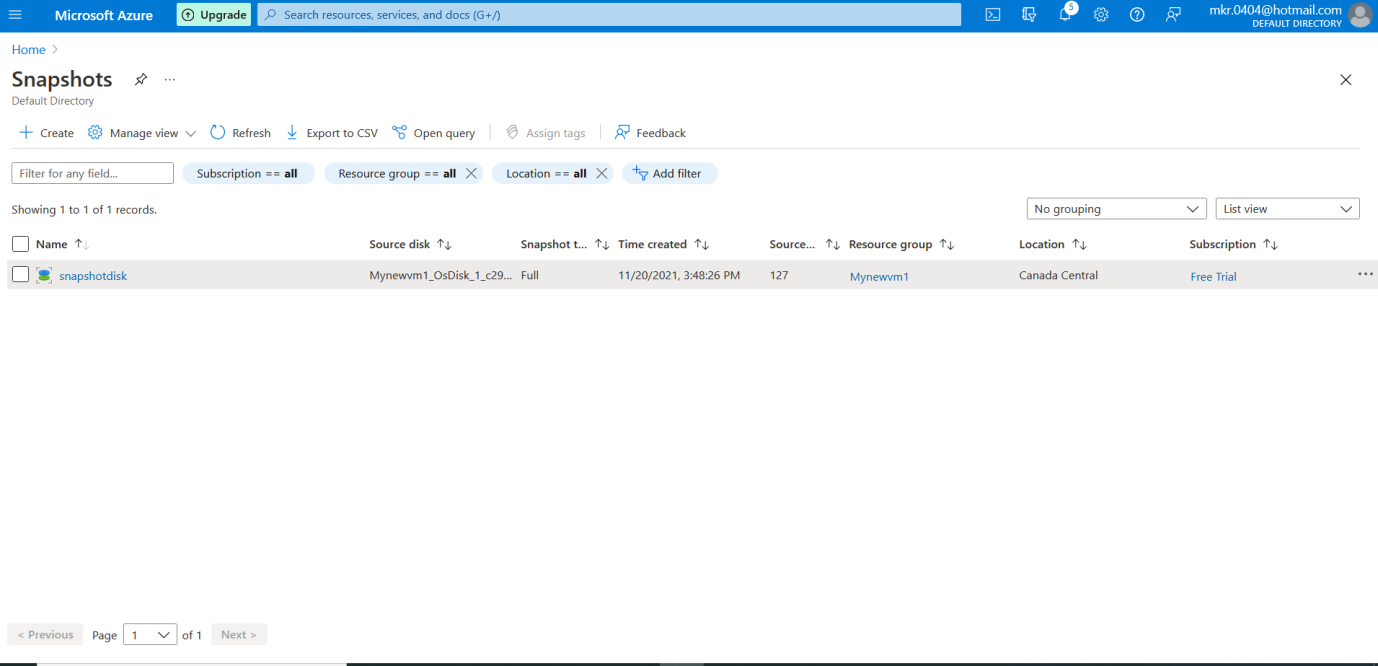
  Restore VM disks and VM from the Azure Snapshot : Azure is offering a simple feature called “Snapshot”. You can create a snapshot from an existing disk, even being up and running on a VM. It is useful to restore the system with a snapshot if something goes wrong.In Azure, we can't revert back Azure VM directly, we should create disk or VM from that snapshot. If you need to create a snapshot, just go to the disk and click on “Create snapshot”      Home>Snap shot>Create> Select the resource group of the VM>Select the Source disk of the VM>Create Creating a new managed disk from a snapshot: Home>Disks>+ Create>Source snapshot - Select the previously created snapshot>Create Go to VM>Stop VM (deallocate) it. Click on the Disks option on the VM page. And Click on Swap OS disk. Select the newly created OS disk from the drop-down menu and click on OK. Confirm the VM name down for which VM you are swapping OS Disk Once the OS disk i...

Create an Azure file share and Mount Windows and Linux Vm's:

Image
  Create an Azure file share and Mount Windows and Linux Vm's: Two types of File Share Protocol: SMB Protocol File Share (Server Message Block) NFS Protocol File Share (Network File share) SMB File Share: Performance requirements: Standard file shares ,hard disk-based (HDD-based) hardware Premium file shares, solid-state disk-based (SSD-based) hardware. Redundancy requirements: Standard file shares offer locally-redundant (LRS), zone redundant (ZRS), geo-redundant (GRS), or geo-zone-redundant (GZRS) storage, however the large file share feature is only supported on locally redundant and zone redundant file shares. Premium file shares do not support any form of geo-redundancy. Premium file shares are available with locally redundancy and zone redundancy in a subset of regions. File share type: Standard file shares (GPv2), LRS/ZRS Standard file shares (GPv2), GRS/GZRS Premium file shares (FileStorage), LRS/ZRS We need a storage account to create a file share. Please refer Azure Admin...